
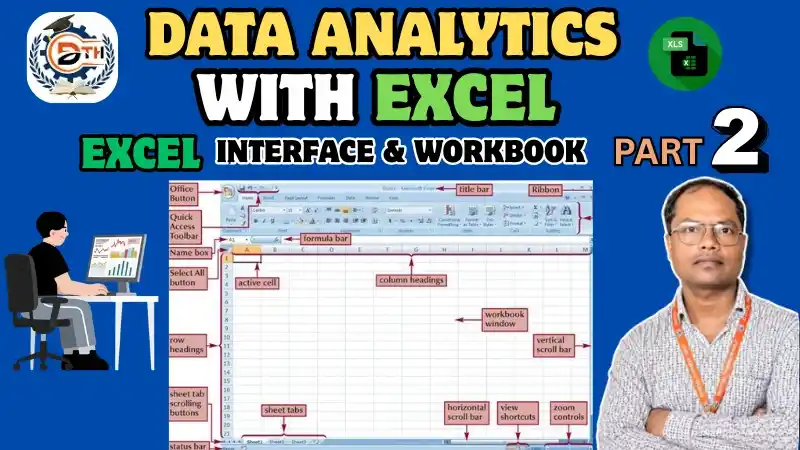
Aaj ki class mein hum Microsoft Excel ko bilkul basic level se samjhenge. Agar aap ak fresher candidiate ho aur aapko Microsoft Excel ke baare mein zyada jamkari nahi rkhte, to don’t worry. Aaj ki video me hum Excel ko bilkul basic level se step-by-step samjhenge.
Aaj ki hamari class specially Excel Interface aur Workbook Basics par based hai.
Is class mein hum kuch important basic topics cover karenge, jaise:
- Microsoft Excel kya hota hai?
- Workbook kya hoti hai?
- Worksheet kya hoti hai?
- Rows aur Columns kya hote hain?
- Cell aur Cell Address kya hota hai?
- Ribbon kya hota hai?
- Formula Bar kya hota hai?
- Name Box kya hota hai?
- Sheet Tab kya hota hai aur kahan hota hai?
- Excel File ko Save aur Open kaise karte hain?
Toh aaj ki class ka hamara main onjective Excel ke basic concepts aur interface ko beginner-friendly way mein samajhna rahega.
Chaliye dosto, suru krte hain!!
1. What is Microsoft Excel?
Microsoft Excel, Microsoft ka ek Spreadsheet Software hai. Iska use data ko enter, organize, calculate, analyze, filter aur sort karne ke liye kiya jata hai.
यदि आप Data Analyst Course सीखना चाहते हैं तो हमारी Technical Team से बात कर सकते हैं!
(HR: 9034756711 | MD: 9017940459)
How is Excel Used?
Excel ka use mainly:
- Education
- Business
- Accounting
- HR
- Sales & Marketing
- Finance
- Data Analytics
mein kiya jata hai.
Simple Example:
Agar students ke naam, courses aur marks ka data hai, to Excel ki help se is data ko properly manage aur analyze kar sakte hain.
2. How to Open Microsoft Excel?
Computer mein Microsoft Excel search karke open karein. Excel open hone ke baad agar new file create karni hai, to Blank Workbook par click karein. Isse ek new Excel workbook open ho jayegi.
Complete Lesson in This Video; So Watch Completely!! 👇 👇 👇
3. What is Workbook?
Excel ki complete file ko Workbook kaha jata hai.
Example:
Student Data.xlsx
Ye ek Excel Workbook hai.
Ek Workbook ke andar multiple Worksheets ho sakti hain.
Easy Way
Workbook = Complete Excel File
4. What is Worksheet?
Worksheet Excel ke andar ek working area hota hai jahan hum apna data enter aur manage karte hain.
Ek workbook mein multiple worksheets ho sakti hain, jaise:
- Sheet 1
- Sheet 2
- Sheet 3
- Sheet 4
Worksheet ko hum Rename, Delete, Move aur Copy bhi kar sakte hain.
Easy Way
Workbook → Multiple Worksheets
5. How does Row ?
Excel mein jo Horizontal Lines hoti hain unhe Rows kaha jata hai.
Example:
1 2 3 4 5…
Ye row numbers hote hain.
Remember
Horizontal = Row
6. How does Column?
Excel mein jo Vertical Lines hoti hain unhe Columns kaha jata hai.
Example:
A, B, C, D, E…
Remember
Vertical = Column
7. What is Cell?
Row aur Column ke Intersection ko Cell kaha jata hai.
Digital Thinker Help – Best IT Company in Yamunanagar
Example:
- Column A + Row 1 = A1
- Column B + Row 2 = B2
- Column C + Row 3 = C3
Excel mein data cells ke andar enter kiya jata hai.
8. Why is Cell Address?
Excel mein har cell ka ek Unique Address hota hai.
Formula:
Column Letter + Row Number = Cell Address
Examples:
- A1
- B5
- C10
- D25
- G10
Agar B column aur 5th row hai, to cell address B5 hoga.
9. How does Active Cell?
Jab hum Excel mein kisi particular cell par click karte hain, to wo cell Active Cell ban jata hai.
Active cell mein hum:
- Data enter kar sakte hain
- Text likh sakte hain
- Numbers enter kar sakte hain
- Formulas use kar sakte hain
Easy Example
Agar aap B3 par click karte hain, to B3 Active Cell ban jayega.
10. What is Name Box?
Excel interface mein Formula Bar ke left side mein Name Box hota hai.
Ye currently selected cell ka address show karta hai.
Example:
Agar aap B3 cell select karte hain, to Name Box mein B3 दिखाई देगा.
Name Box ka Use
Iski help se aap kisi specific cell location par quickly jump kar sakte hain.
11. What is Formula Bar?
Formula Bar Excel mein selected cell ka content display karta hai.
Agar cell mein:
Rahul
likha hai, to Formula Bar mein bhi Rahul दिखाई देगा.
Agar cell mein koi formula hai, to Formula Bar mein wo complete formula दिखाई देगा.
Easy Way
Formula Bar = Cell ka Content
12. What is Ribbon?
Excel window ke top area mein jo main section hota hai, jahan different Tabs aur Commands available hote hain, use Ribbon kaha jata hai.
Ribbon mein commonly ye tabs milte hain:
- Home
- Insert
- Draw
- Page Layout
- Formulas
- Data
- Review
- View
13.What is Home?
Home Tab Excel ka ek important tab hai. Ismein formatting aur editing ke different options available hote hain. Home par click karne par uske related commands aur options दिखाई देते हैं.
14. What is Sheet Tab?
Excel window ke bottom mein jo Sheet Tabs hote hain, unki help se hum different worksheets ko manage karte hain.
Hum Sheet Tab se:
- New Sheet Add
- Rename
- Delete
- Move
- Copy
- Hide
- Unhide
kar sakte hain.
15. How to Save an Excel File?
Excel file ko save karne ke liye shortcut:
Ctrl + S
Press karein.
Isse aapki Excel file save ho jayegi. File menu se bhi Save option use kar sakte hain.
16. How to Open an Excel File?
Existing Excel file open karne ke liye:
Ctrl + O
shortcut use kar sakte hain.
Ya phir:
File → Open
par jaakar file select kar sakte hain.
17. Important Excel Shortcuts
| Shortcut | Use |
| Ctrl + N | New Workbook |
| Ctrl + O | Open Workbook |
| Ctrl + S | Save |
| Ctrl + C | Copy |
| Ctrl + V | Paste |
| Ctrl + X | Cut |
| Ctrl + Z | Undo |
| Ctrl + Y | Redo |
| Ctrl + A | Select All |
| Ctrl + F | Find |
| Ctrl + P |
18. How to Practice Basic Excel?
Excel seekhne ke liye ek simple student data create kar sakte hain:
| Student Name | Course | Marks |
| Rahul | PHP | 78 |
| Priya | Excel | 59 |
| Amit | Python | 89 |
Is data ko Excel worksheet mein enter karke formatting aur basic operations ki practice ki ja sakti hai.
19. How to Quickly Recap Excel Basics?
- Workbook = Complete Excel File
- Worksheet = Workbook ke andar individual sheet
- Row = Horizontal
- Column = Vertical
- Cell = Row + Column ka intersection
- Cell Address = Column Letter + Row Number
- Active Cell = Currently selected cell
- Name Box = Selected cell ka address
- Formula Bar = Cell ka content
- Ribbon = Excel commands ka main area
- Sheet Tab = Worksheets ko manage karne ke liye
Conclusion
Aaj humne Microsoft Excel ke basic concepts aur Excel Interface ko beginner level se samjha. Excel mein Workbook Worksheet Row Column Cell Cell Address Name Box Formula Bar Ribbon aur Sheet Tabs jaise concepts ko samajhna bahut important hai. Agar aap Data Analytics seekhna chahte hain, to Excel ke basics ko strong karna ek important first step hai.
If this content is valuable for you, then please share it along with your friends, family members, pet lovers or relatives over social media platforms like as Facebook, Instagram, LinkedIn, Twitter, and more.
Do you have any experience, tips, tricks, or query regarding on this? You can drop a comment!